Quick start
Complete these three steps after you install Store Locator.
1. Connect Mapbox
- Create or sign in to a Mapbox account.
- Copy a public access token from Mapbox.
- In Store Locator, open Settings and paste the token into Mapbox > API key.
- Save the settings.
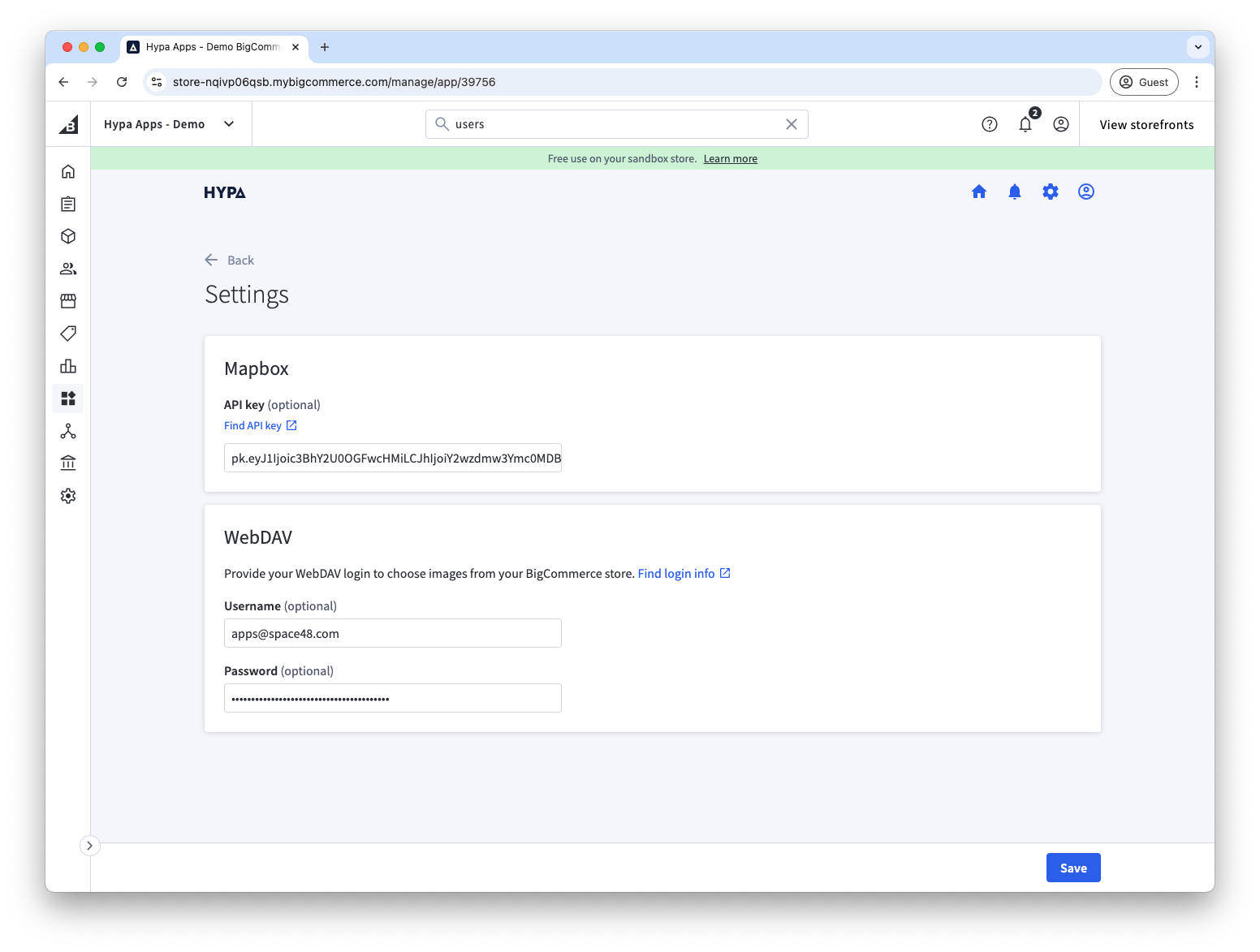
See Get a Mapbox API key for the full procedure.
2. Create a location
- Open Locations and select Create location.
- Enter a name and search for the address.
- Confirm the map pin, channel, and any optional details.
- Save the location.
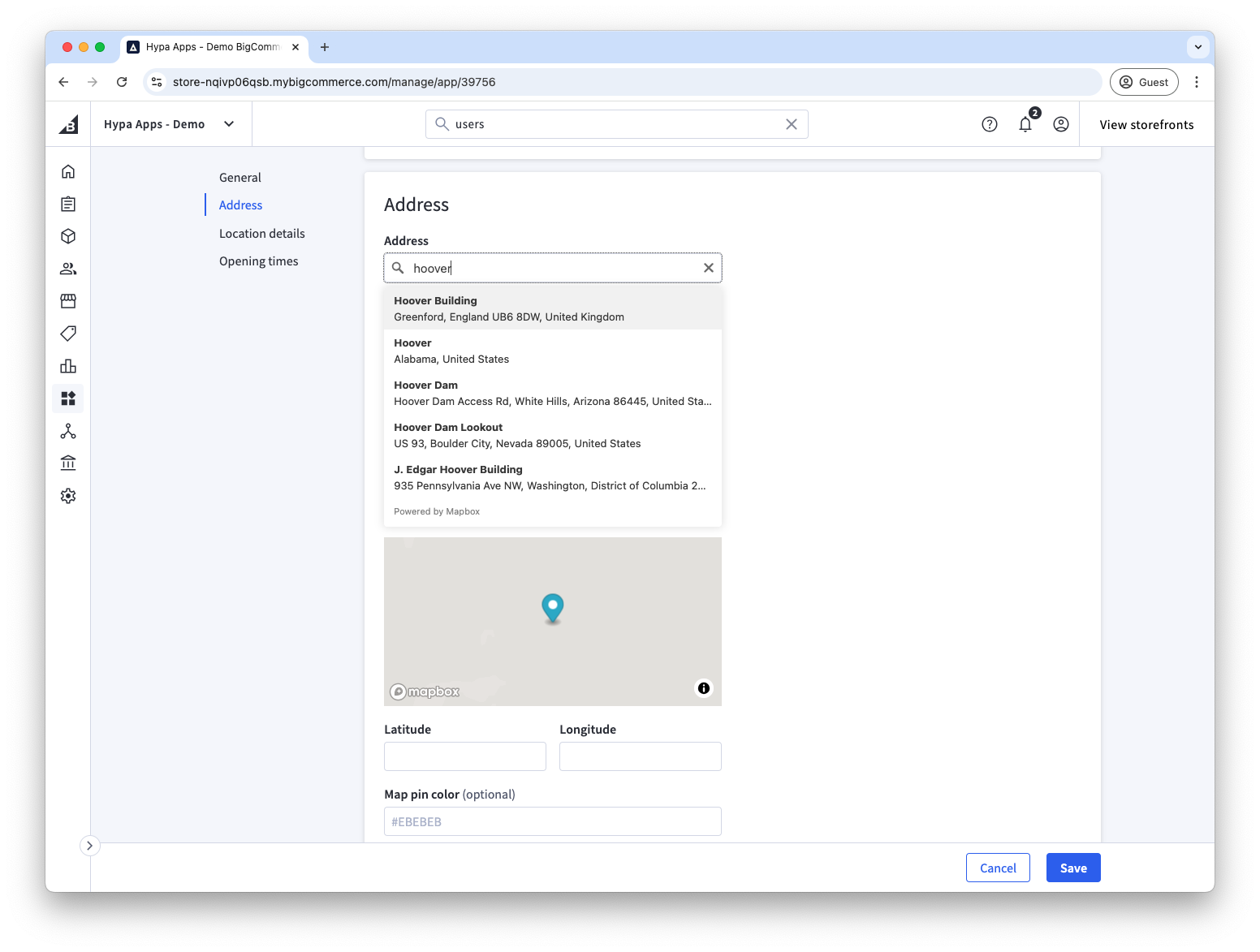
See Add store locations for all available fields.
3. Add the Page Builder widget
- Open the target storefront page in BigCommerce Page Builder.
- Drag the Store Locator widget onto the page.
- Adjust its colours, map style, and filtering options.
- Save and publish the page.
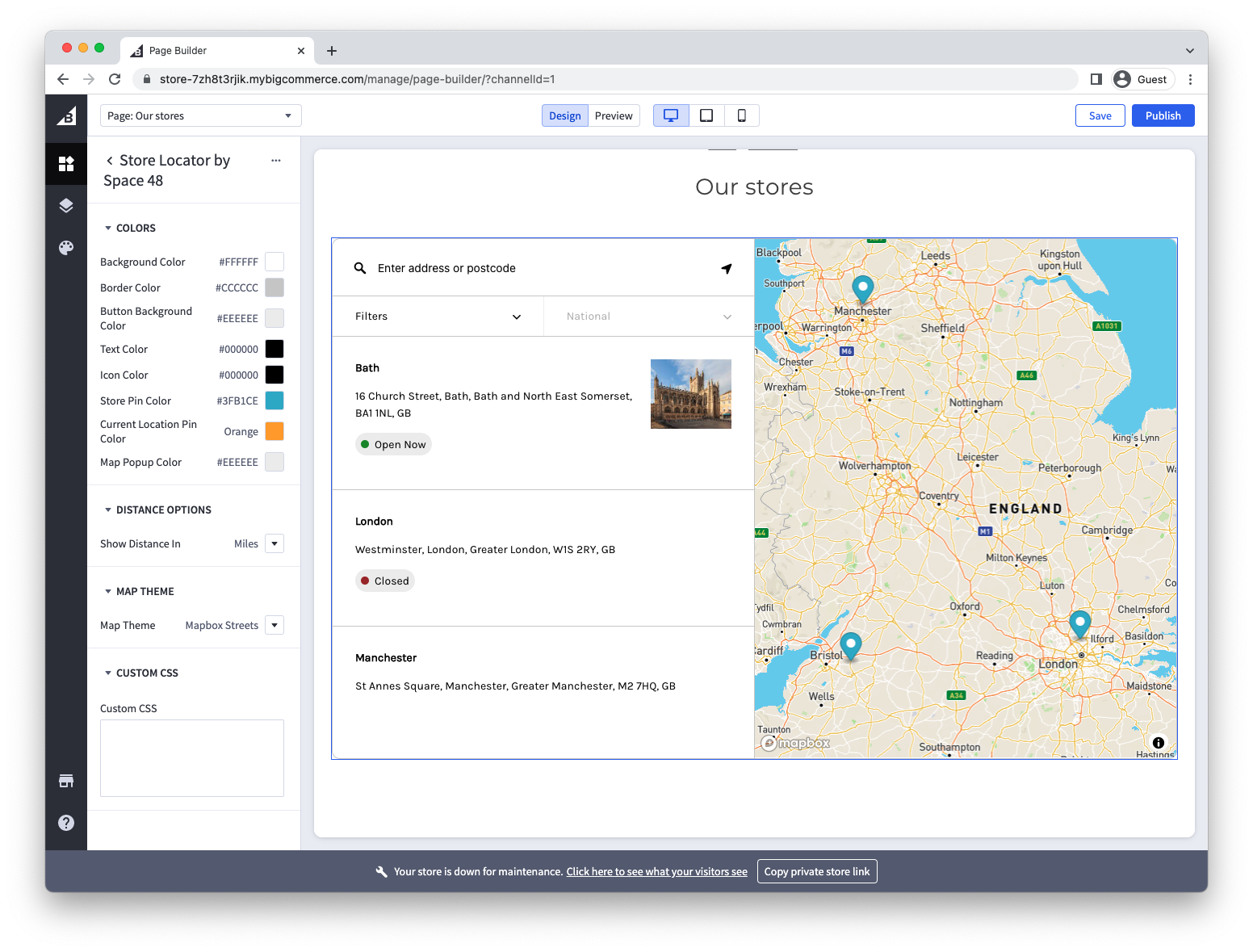
See Insert Store Locator with Page Builder for more detail.