Insert Store Locator with Page Builder
Use the Store Locator widget to add the customer-facing locator to a Stencil storefront without writing theme code.
Before you begin
- Connect Mapbox.
- Create at least one enabled location for the storefront channel.
- Open the target page in BigCommerce Page Builder.
Add the widget
-
In Page Builder, find the Store Locator custom widget.
-
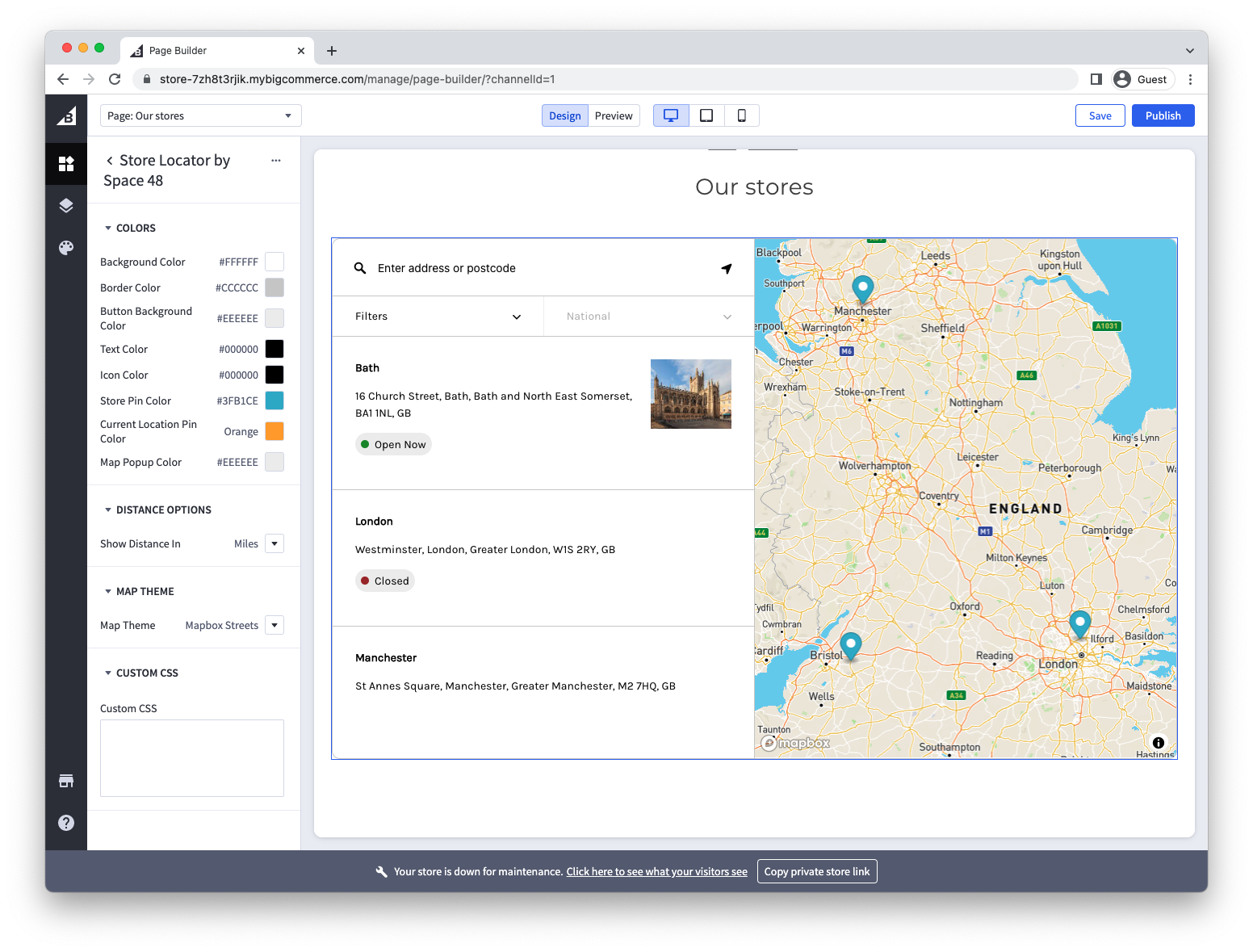
Drag it into the page layout. Page Builder shows a live preview.
-
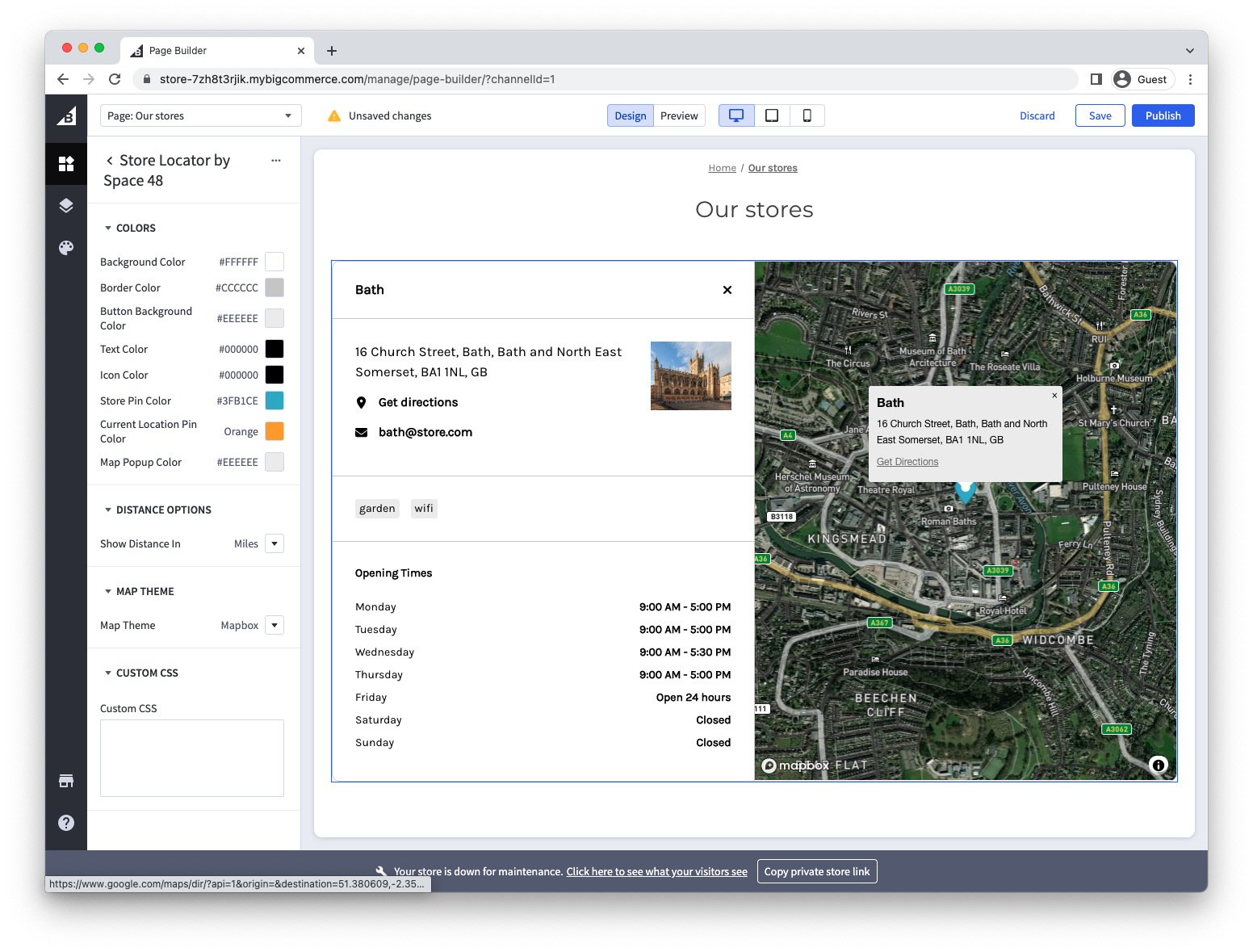
Configure the map style, colours, search settings, and other widget options. The widget inherits some typography from the active theme, and you can add custom CSS for more specific adjustments.
-
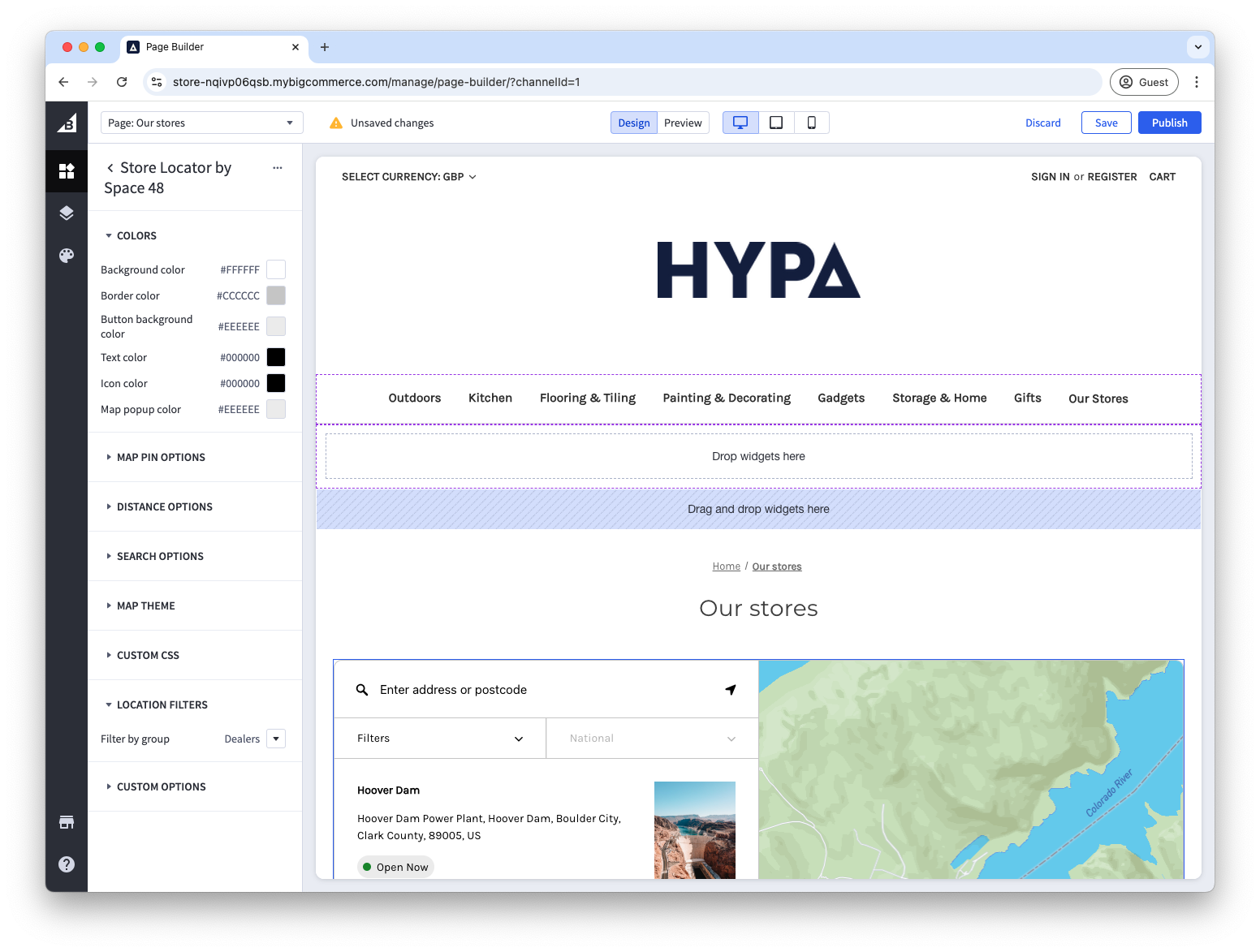
To show only part of the location catalogue, select a location group in the widget's Location filter setting.
-
Save and publish the page.
Open the published page in a private browser window and confirm that the map, search, filters, and location details work for a signed-out customer.
For help creating subsets, see Filter locations by group.