Configure for WebDAV image uploads
Store Locator uses your BigCommerce WebDAV storage for location images and custom map-pin icons. Add WebDAV credentials before selecting those files in a location.
Add WebDAV credentials
-
In Store Locator, open Settings.
-
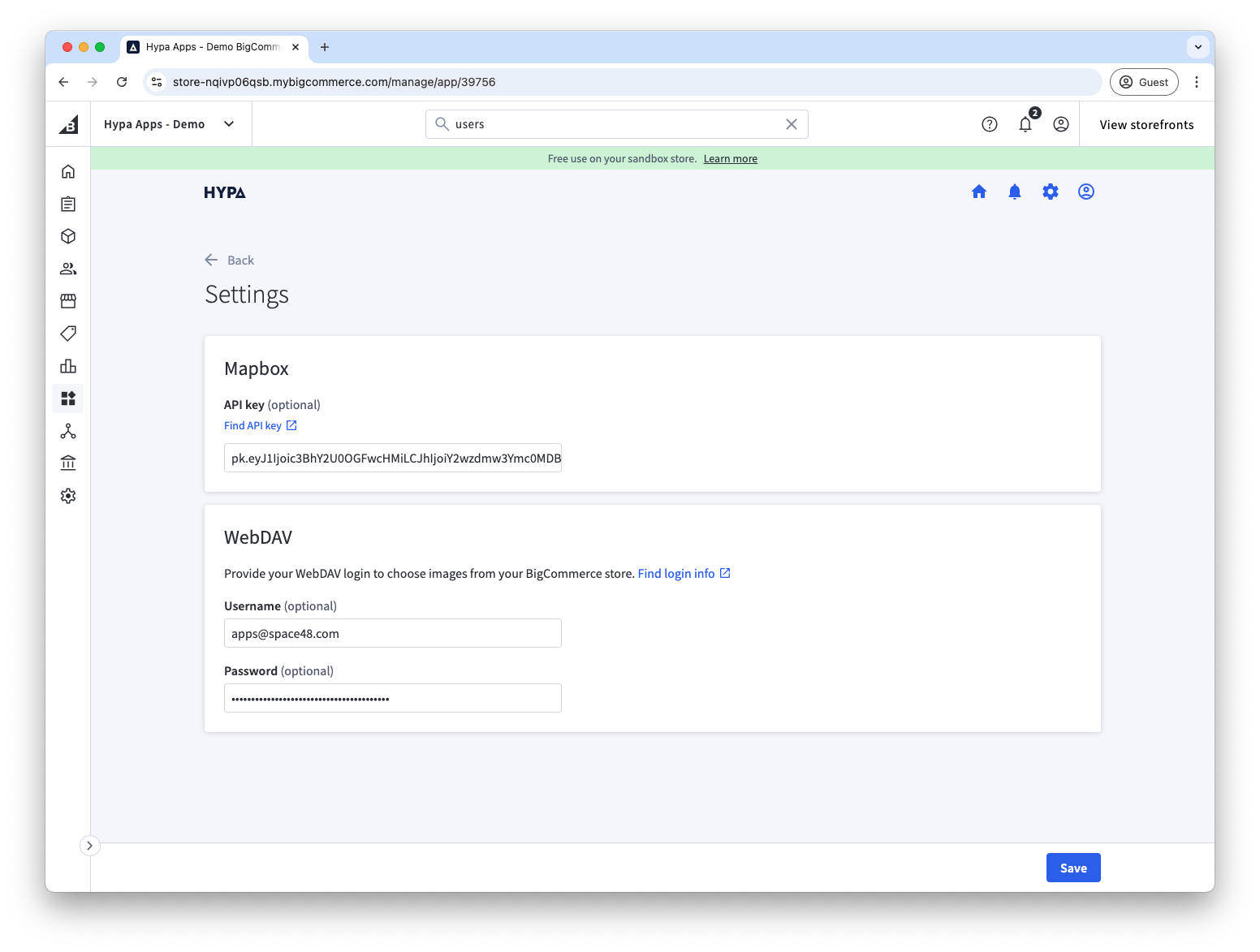
Under WebDAV, enter the username and password from a BigCommerce user with WebDAV access.
-
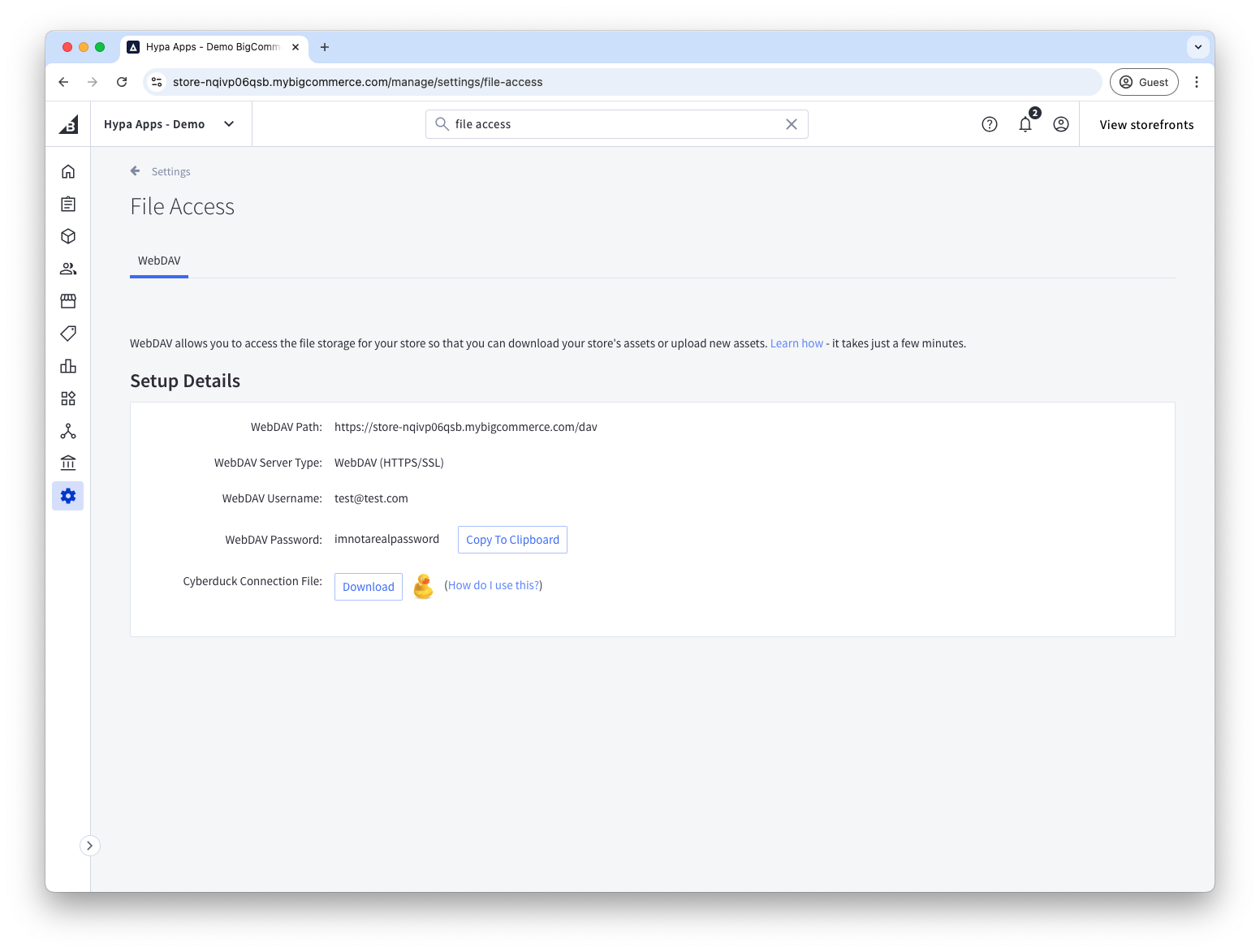
To find or create the credentials, open Settings > File access (WebDAV) in BigCommerce.
-
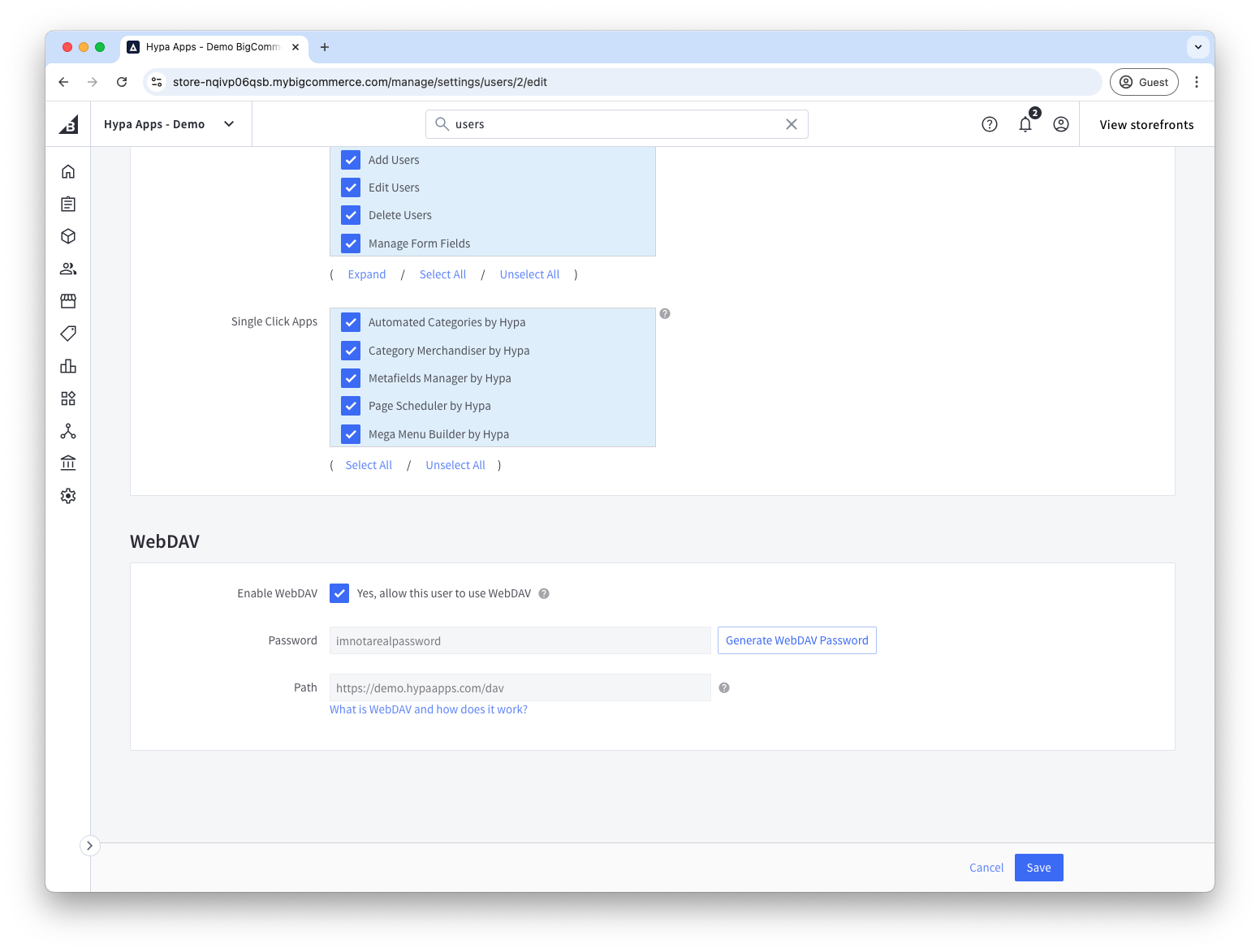
If the user does not have WebDAV access, enable it under Account settings > Users, or ask a store owner to do so.
-
Return to Store Locator and save the settings.
You can now select WebDAV files in the location Image and Map pin icon fields.
Use a dedicated BigCommerce user where possible. Do not share the WebDAV password in support messages or documentation screenshots.
For more detail, see BigCommerce's WebDAV documentation.