Import & Export
Use CSV import and export to manage location data in bulk. These features are available on supported paid plans.
Create one representative location in the app, export your locations, and use that file as the import template. This gives you the exact header names and current data format.
Import
The file must be a UTF-8 encoded CSV with a non-empty header row. Header names are case-sensitive and must match the supported column names below. Unsupported columns are ignored.
The import uses id to update an existing location when possible. If id is empty, Store Locator also looks for a location with the same name, latitude, and longitude. Otherwise it creates a location.
Columns
| Column | Required | Format or behaviour |
|---|---|---|
id | Yes, value may be empty | Existing numeric Store Locator ID. Leave empty to create a location or use fallback matching. |
enabled | No | yes, no, true, false, 1, or 0. A new location without valid coordinates cannot be enabled. |
name | Yes | Location name. |
address_full | Yes | Complete display address. This value cannot be empty in the current importer. |
address, address2, city, county | No | Accepted compatibility columns. Use address_full; these values do not replace the required full address. |
postcode | No | Postal or ZIP code. |
country | Yes | Country name or two-letter ISO code, such as United Kingdom or GB. |
latitude | No | Number from -90 to 90. Required for the location to be enabled. |
longitude | No | Number from -180 to 180. Required for the location to be enabled. |
map_pin_color | No | Seven-character hex colour with #, such as #FF0000. |
phone, email, url | No | Customer-facing contact details. |
image | No | BigCommerce WebDAV path, such as /dav/content/location.jpg. |
channels | No | Pipe-separated channel names, such as Store One|Store Two. Defaults to channel 1 when omitted. |
tags | No | Pipe-separated tag names, such as Parking|Wi-Fi|Garden. |
groups | No | Pipe-separated group unique keys. Create the groups before importing. |
notes | No | Customer-facing rich-text content; HTML is supported. |
enable_opening_times | No | yes or no. |
monday_from, monday_to | No | Time such as 09:00, or closed or 24 hours. |
Tuesday through Sunday _from and _to fields | No | Same format as the Monday fields. |
Upload
-
Open Locations > Import / Export > Import.
-
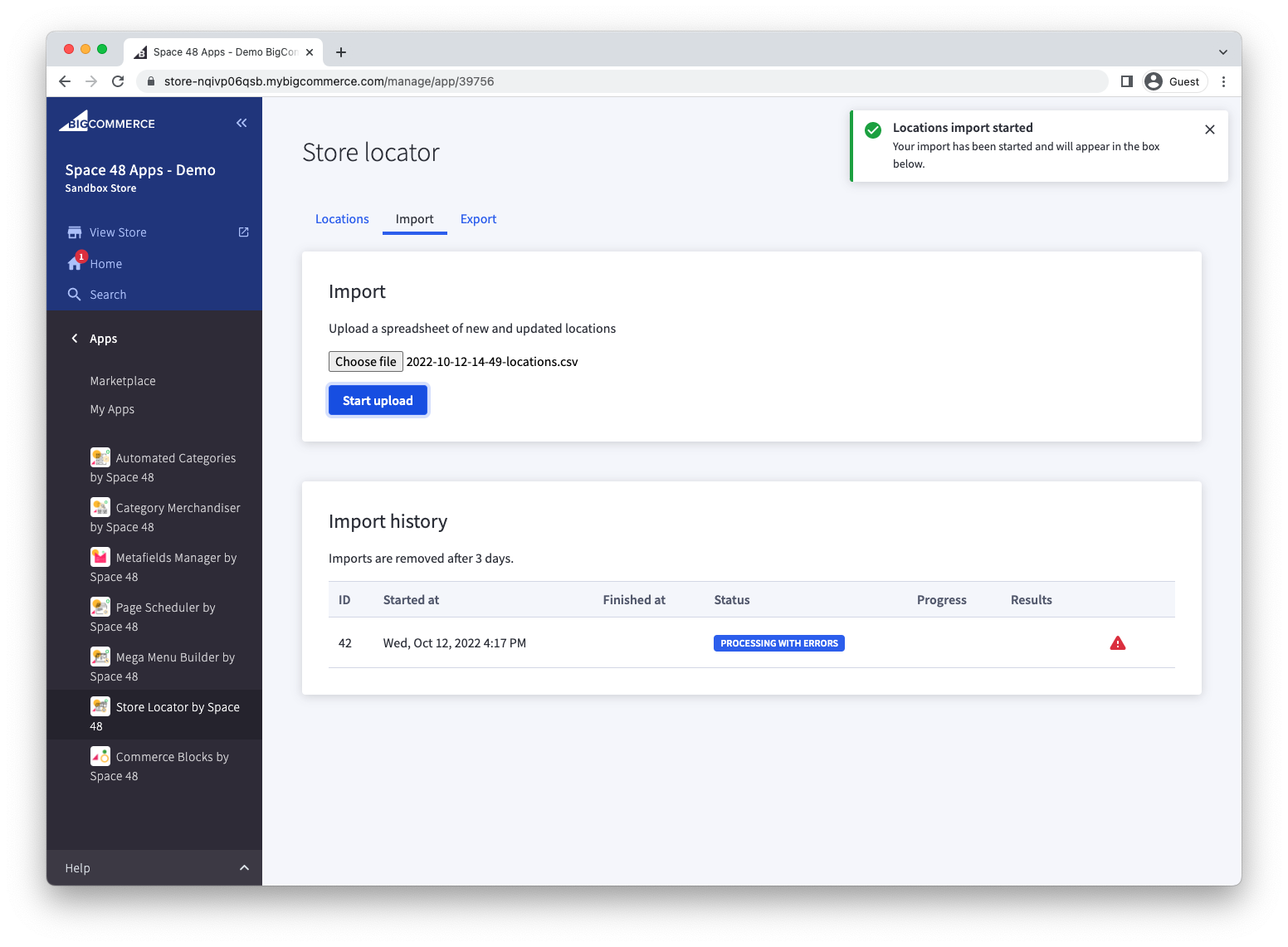
Select the CSV file and start the import.
-
Wait for processing to finish. Imports remain in the history for three days.
-
If a row fails, select its warning icon to review the error, correct the CSV, and import it again.
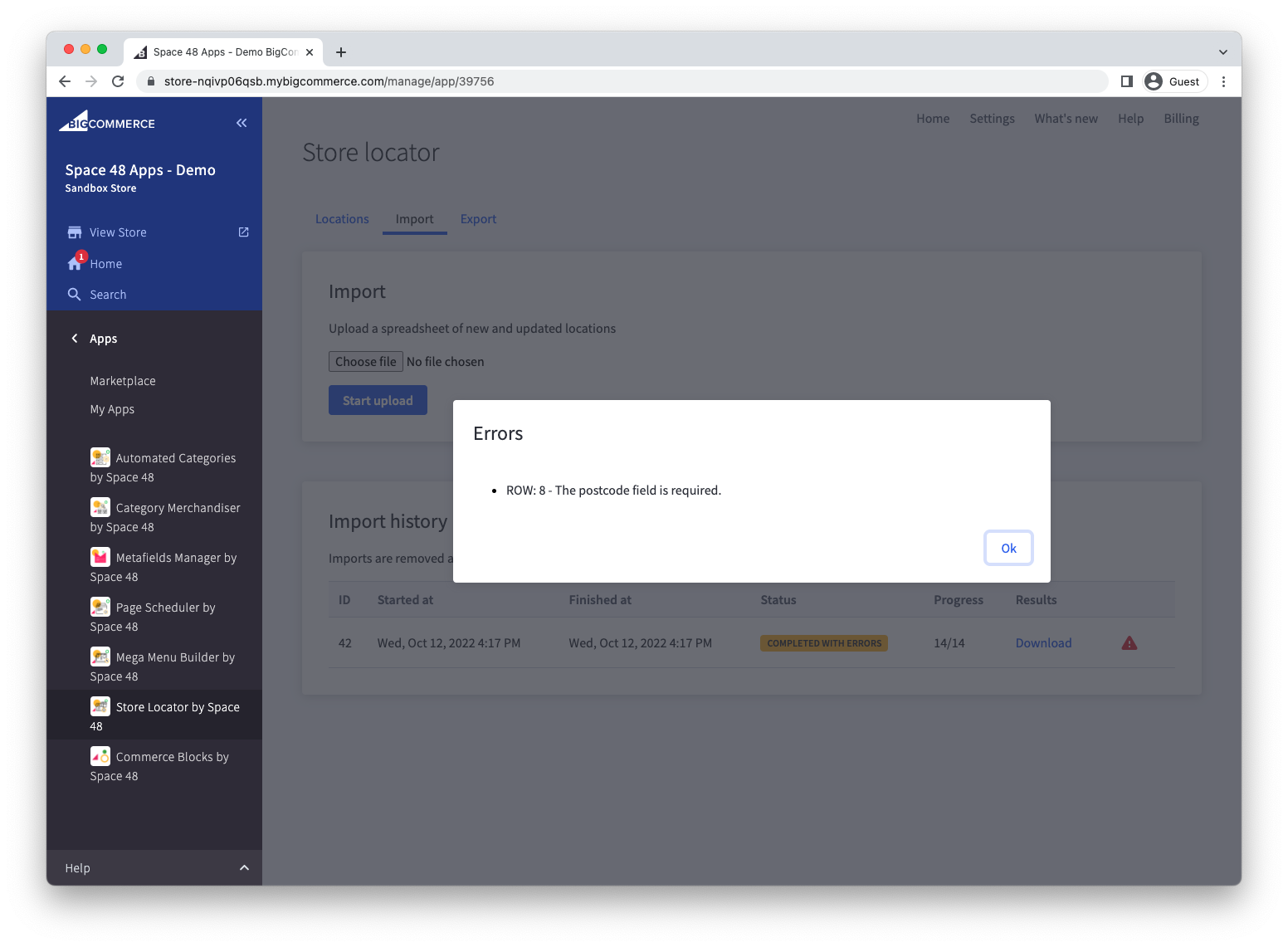
After a successful import, verify a sample of created and updated locations before publishing them.
Export
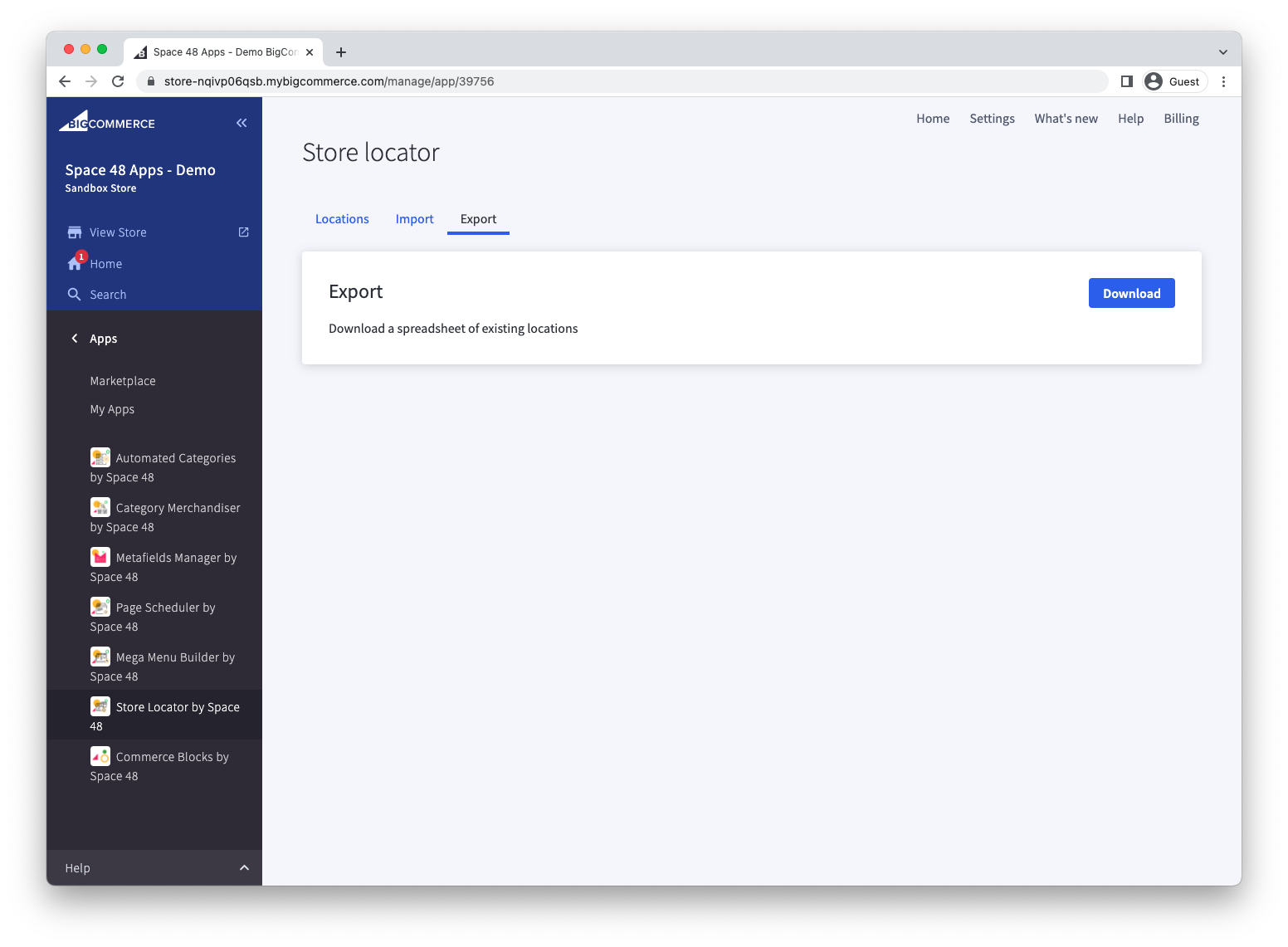
Open Locations > Import / Export > Export, then select Download. The generated CSV contains the current supported export headers and is the safest starting point for a later import.