Translating Store Locator
Override the widget's built-in English phrases to change its wording or provide another language. The override runs on the storefront and does not translate location data that you entered in the app.
Add a translation override
-
In BigCommerce, open Script Manager.
-
Create an Essential script in the Head on Store pages.
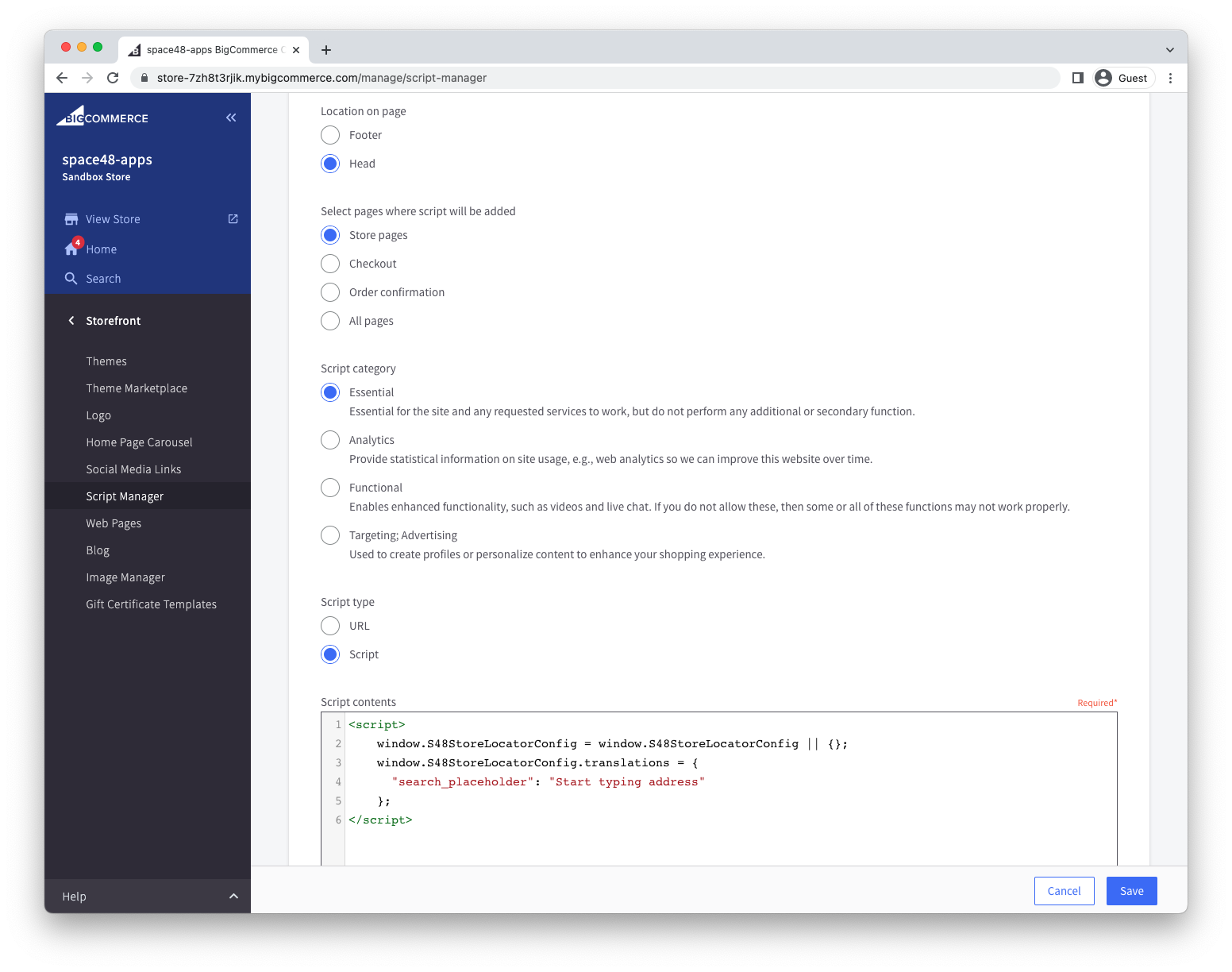
-
Add this script, replacing or extending the phrases you want to override:
<script>
  window.S48StoreLocatorConfig = window.S48StoreLocatorConfig || {};
  window.S48StoreLocatorConfig.translations = {
    search_placeholder: "Start typing an address"
  };
</script>
- Save the script and test the Store Locator page in a private browser window.
window.S48StoreLocatorConfig is a legacy technical identifier that the current widget still reads. Keep its spelling and capitalisation unchanged.
Available phrases
These are the current English defaults:
{
  "filters": "Filters",
  "distance_national": "National",
  "directions_cta": "Get directions",
  "website_cta": "Visit website",
  "radius": "Radius",
  "opening_times": "Opening Times",
  "open_now": "Open Now",
  "open_24_hours": "Open 24 hours",
  "closed": "Closed",
  "distance_away": "%{distance} away",
  "location_image_alt": "Photo of %{name}",
  "no_locations_message": "No locations found",
  "exceeds_max_distance_warning": "No results within %{range} but we found these further away.",
  "search_placeholder": "Enter address or postcode",
  "monday": "Monday",
  "tuesday": "Tuesday",
  "wednesday": "Wednesday",
  "thursday": "Thursday",
  "friday": "Friday",
  "saturday": "Saturday",
  "sunday": "Sunday"
}
Keep placeholders such as %{distance}, %{name}, and %{range} in the translated value so the widget can insert the runtime value.